From Noticeboard to Public Web Page: Why Public Notices Are Easy to Miss
Public notices moved from noticeboards to web pages, changing how you find dates, updates and source documents. Learn what to check when a notice is hard to locate.
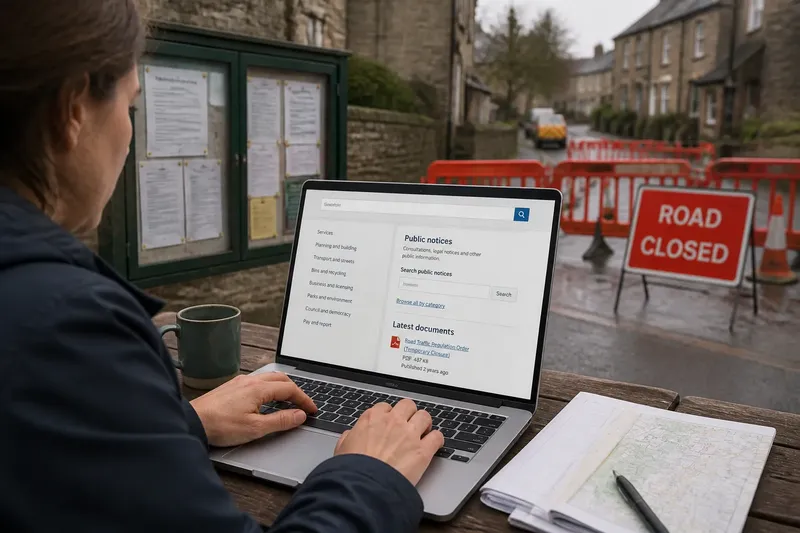
You are looking for a road closure notice before setting off, but the council website shows a search box, several department pages and an old PDF. Public notices have moved from physical noticeboards towards digital publication, and that shift changes not only where information appears but how readers encounter it. Knowing the common snags makes it easier to find the current notice and check what it says.
Public notices now arrive through several routes
A noticeboard puts a document in a place people pass: a library entrance, a council office, a community hall or a site affected by a proposal. The reader can see what has been pinned up, although only by visiting that location. A web page can make the same information available without a visit, and can link to forms, maps, supporting papers and later updates.
That convenience comes with a change in how the notice is encountered. A physical display has a visible boundary; a web page depends on a reader knowing which site, section or search phrase to use. Online information may also be spread across a main notice page, a service page and an attached document. A search result can lead to one of those pieces without showing the surrounding context.
Digital publication does not always mean that a noticeboard has disappeared. Some public bodies use both, while others rely mainly on a website. The practical question is not which format is better in every case, but where the responsible organisation says the authoritative notice is published.
Start with the public body named in the notice or issue.
Search results lead to an old or incomplete notice
What causes it: Search engines can keep older pages in their results, and a public body may retain past notices for the record. Search terms can also match a broad news item rather than a formal notice. The date shown in a search result may refer to a page update, not the date when the notice was issued.
What to try, in order:
- Open the result and look for the issuing organisation, notice date, subject and any stated closing date.
- Check whether the page says it has been superseded, withdrawn or updated.
- Visit the organisation’s main website and use its own search function or notice section. Search for the subject together with a place name or service.
- Compare the result with any linked source document. A page may summarise a notice while the document contains the full wording.
- If the date or status remains unclear, use the contact route on the organisation’s site and ask which version is current.
Say you search for a planned footpath closure and find a notice from an earlier consultation. You then search the council site for the street name and “footpath notice”, and the current page links to a replacement document. The observable result is that you can distinguish the live notice from the archived one without assuming that the first search result is current.
Keep the page address and document date together if you need to return to the notice.
The notice exists but the website makes it hard to find
What causes it: Public information is often organised by service area, not by the question a reader has. A road notice might sit under transport, legal notices, consultations or a local project page. Navigation labels may be familiar to staff but vague to someone arriving with a single practical concern.
What to try, in order:
- Search the organisation’s site for a distinctive phrase from the notice, alongside the location or subject.
- Try the name of the responsible service, such as planning, licensing, highways or environmental health, if that fits the issue.
- Check the site’s pages for “public notices”, “consultations”, “current notices” or “have your say”. These labels are not interchangeable, but can point towards relevant material.
- Look for a site map or contact directory if the search box returns unrelated pages.
- Record the section where you found the notice, so a later update is easier to trace.
Do not assume that a page headed “news” is the formal publication point. It may announce a notice while the official text sits elsewhere.
A PDF or web page leaves out what you need
What causes it: The web page may be a short announcement and the PDF the full notice. Conversely, the PDF might be a map or supporting attachment, while important dates and contact details appear on the page around it. Documents can also be scanned images, making text difficult to search or read with assistive technology.
What to try, in order:
- Read the page around the attachment before opening it; note any description of what the document contains.
- Check the document title, issuing body, date and page count. These help establish whether you have the whole item.
- Look for the same information in an accessible HTML version or a text alternative.
- If a document is unreadable or missing, contact the publisher and describe the exact page or attachment. Ask for an accessible copy or an explanation of where the full notice can be read.
- Keep the notice and its attachments together when referring to them; a map may clarify the affected area, while the text sets out the formal details.
A public notice’s meaning can depend on its attachments. Read them as parts of the same publication rather than treating the first file as the complete record.
A later update appears to conflict with the first notice
What causes it: Online pages can be amended, replaced or linked to a newer document. A cached search result, saved PDF or printed copy may continue circulating after the page changes. Sometimes a later item is an announcement about a change rather than a replacement of the formal notice.
What to try, in order:
- Check the page for an update note, publication date or link to a revised version.
- Open the linked documents and compare their titles, dates and stated status.
- Look for a direct explanation of what changed and whether an earlier deadline or arrangement still applies.
- If the page does not resolve the conflict, contact the named publisher with both document titles and ask which one currently applies.
- When sharing the information, include the direct page link and the version date rather than forwarding an unexplained attachment.
Where a notice affects a deadline, access or a formal right, do not infer the current position from a search snippet or an old saved copy. Ask the responsible public body to clarify it.
Readers cannot rely on web access alone
What causes it: A digital notice assumes that readers can get online, use the relevant site and handle its format. A page may be difficult to use on a phone, require a file viewer or present key information in a form that is not accessible. A physical notice may still matter to people who use that location, but it is not automatically a complete substitute for a well-organised web page.
What to try, in order:
- Check whether the public body offers the notice in HTML, accessible document or large-print form.
- Use a library or public access point if you need a connection or a larger screen.
- Ask the publishing office how people without reliable internet can see the notice and receive updates.
- If you share the information with neighbours, pass on the issuing body, subject, relevant dates and a route to the original—not just a cropped image.
Access is part of publication. A notice that technically appears online can still be difficult for its intended readers to use.
What should I check when a public notice is unclear?
How can I tell whether a public notice is current?
Check the issuing organisation, publication date, status wording and links to later versions. If the page and attachment conflict, ask the publisher which version currently applies.
Should I trust a search result’s date?
Not on its own. The date may reflect when a page was indexed or changed, so open the result and check the notice itself for its issue date and status.
What if a notice is only available as a difficult PDF?
Look for an HTML version or an accessible alternative on the same site. If none is provided, contact the publisher and identify the document so they can direct you to a usable copy.
Where can I find a notice if the website search fails?
Try the responsible service page, the site map and the organisation’s public-notice section. If those routes do not help, ask the public body where it publishes formal notices on that subject.
Keep a clear route back to the source
Public notices have travelled from boards people could see in a particular place to pages people can reach from many places. Digital publication can make information easier to share, but it also makes readers responsible for checking the source, version and surrounding documents. The same notice may be indexed, summarised, attached and updated in different parts of a site.
For a reliable reference, save the direct link, note the issuing body and retain the notice date. If the issue changes or the page moves, search the organisation’s site again rather than relying on an old bookmark. For public notices, that small habit makes it easier to find the current text and explain exactly which information you used.